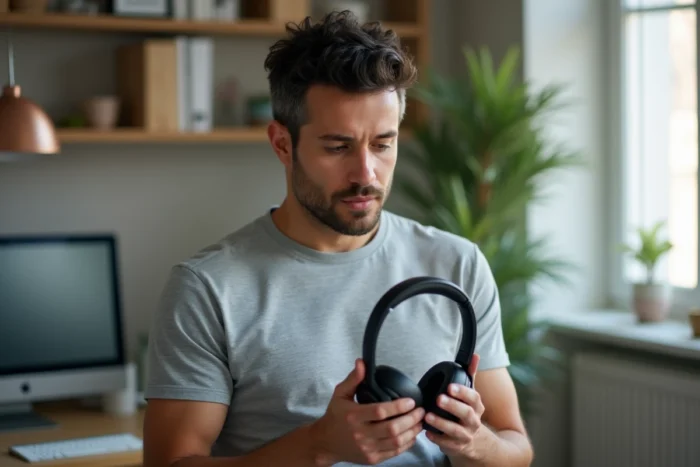
Sony Bluetooth headphones use pairing protocols that vary by model and generation. A WH-CH520 does not connect exactly like a WH-1000XM5, and the receiving device (smartphone, TV, computer) imposes its own constraints. Understanding these differences helps avoid frequent issues during the initial connection or when switching from one device to another.
Sony Multipoint Connection: How Using Two Devices Changes the Game
Most pairing guides focus on the headphone-smartphone link. The multipoint connection, which Sony highlights on its recent models like the WH-1000XM5, changes the usage logic. It allows for an active connection with two devices simultaneously, such as a phone and a laptop.
The practical benefit is straightforward: receive a call on the smartphone without having to disconnect the headphones from the computer, then resume music on the latter once the call is finished. This switch happens automatically, without any manual intervention.
For those looking to pair a Sony Bluetooth headset in a hybrid work context, this feature is a game changer. However, multipoint is not enabled by default on all models. Generally, you need to go through the Sony | Headphones Connect app (renamed Sony | Sound Connect on some recent firmware) to activate it in the settings.
- Multipoint works with a maximum of two devices, no more simultaneously
- Some high-resolution audio codecs (notably LDAC) may be automatically disabled when multipoint is active
- Call priority is managed by the headphones: the music stream is paused, not cut off
Sony Bluetooth Pairing Mode: The Distinction Between First Power-On and Reconnection
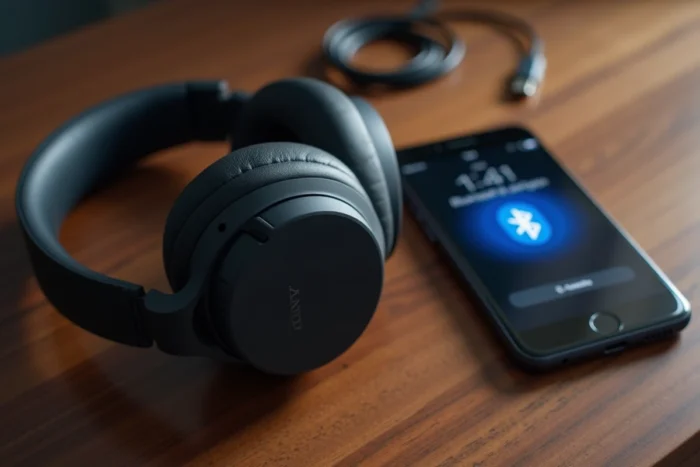
The first power-on of a new Sony headset automatically triggers pairing mode. The indicator light blinks blue, signaling that the headset is discoverable. This phase is documented by Sony on the WH-CH520: holding the power button for about two seconds activates pairing mode during the very first power-up.
The problem arises afterward. When the headset has already been paired with a device, it attempts to reconnect automatically upon startup. To force a new pairing with another device, you need to hold the power button longer (usually five to seven seconds depending on the models) until you see alternating blue-red blinking.
Differences Between Common Sony Models
On the WH-CH520 and WH-CH720N, the procedure remains standard: hold the power button. On the WH-1000XM4 and WH-1000XM5, a long press on the Custom button also triggers pairing mode if this shortcut has been configured in the app. Field reports vary on this point: some users report that the Custom button does not respond without prior firmware updates.
Sony indicates that you need to use the Sony | Sound Connect app to install certain headset updates, not just to customize settings. Updating the firmware before the first pairing can prevent connection failures on recently purchased models.
Pairing a Sony Bluetooth Headset with a TV: A Special Case
Connecting a Sony headset to a smartphone or computer follows standard Bluetooth logic. The TV, however, presents specific challenges. Not all TVs handle Bluetooth audio profiles the same way, and audio-video latency remains a recurring issue.
On recent Sony Bravia TVs, pairing is done via the Bluetooth settings in the audio menu. Some recent models support native dual audio, allowing sound to be sent to two Bluetooth headsets simultaneously. This feature is absent from most TVs from other brands and even older Sony models.
Non-Sony TVs and Adapters
For TVs that do not have Bluetooth or only support the HFP (call) profile without A2DP (stereo audio), an external Bluetooth transmitter connected to the optical output or headphone jack remains the solution. The Sony headset cannot compensate for a missing Bluetooth profile on the source side.
Latency, even on a functional A2DP connection, can result in a noticeable delay between the image and sound. Low-latency codecs (aptX Low Latency) are not supported by Sony headphones, which prioritize SBC, AAC, and LDAC. The audio delay on TVs is a technical limitation of Sony headphones, not a pairing defect.
Firmware Update and Sony Sound Connect App: An Underestimated Prerequisite
The guide for the WH-CH520 specifies that both the headset firmware and the app need to be updated to benefit from improved performance. This seemingly innocuous wording masks a concrete point: certain functions (multipoint, noise-canceling profiles, custom equalizer) are simply not accessible without an update.
Sony recently rolled out an update for the WH-1000XM6 and the 1000X The ColleXion adding a gaming mode that utilizes a new dedicated Bluetooth profile. This type of post-purchase evolution shows that firmware conditions the actual capabilities of the headset, not just its stability.
- The Sony | Sound Connect app (formerly Headphones Connect) is available on iOS and Android
- The firmware update is initiated from the app, with the headset connected and sufficient battery
- Some updates take several minutes and interrupt the audio connection during installation
- After a major update, a pairing reset may be necessary on previously connected devices
A Sony headset that refuses to connect or seems to lack a function deserves a check through the app before any other action. A complete reset of the headset should remain the last resort, not the first reflex. Checking the installed firmware version in the app settings can help determine if the issue stems from outdated software or a hardware incompatibility with the target device.