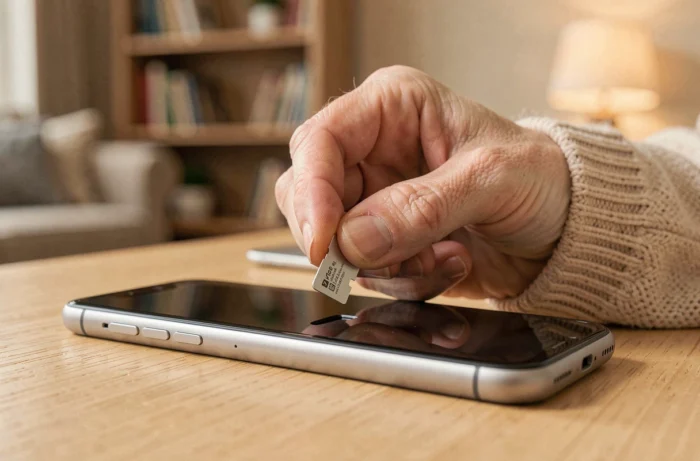
Not all Doro phones handle an SD card in the same way. The maximum capacity accepted, the recognized formats, and even the physical location of the reader vary from generation to generation. Before buying a memory card for a Doro, the first question to ask is not “how to insert it,” but “which one does my model actually support.”
microSD Capacity by Doro Generation: What the Technical Specifications Indicate
The Doro range spans over a decade of models. The limits of external storage have significantly evolved between the early flip phones and the recent smartphones running Android 14.
| Generation / Model | Accepted Formats | Maximum Capacity |
|---|---|---|
| Doro 2424, 6530, 6620 (flip phone) | microSD, microSDHC | 16 to 32 GB |
| Doro 8050 (smartphone) | microSD, microSDHC | 128 GB |
| Doro Aurora A10 (Android 14) | microSD, microSDHC, microSDXC | up to 1 TB (1,000 GB) |
| Doro Leva E30 (recent entry-level) | microSD, microSDHC, microSDXC | microSDXC compatibility confirmed |
The leap is significant. Flip phone models generally top out at 32 GB, while an Aurora A10 officially accepts microSDXC cards up to 1 TB. The frequent recommendation of a “small 16 GB card” for a Doro is therefore outdated as soon as we talk about devices released since 2024.
The detailed procedure and compatibility for each reference are documented by gestea-senior on Espace Senior, along with the specific limits of each model.
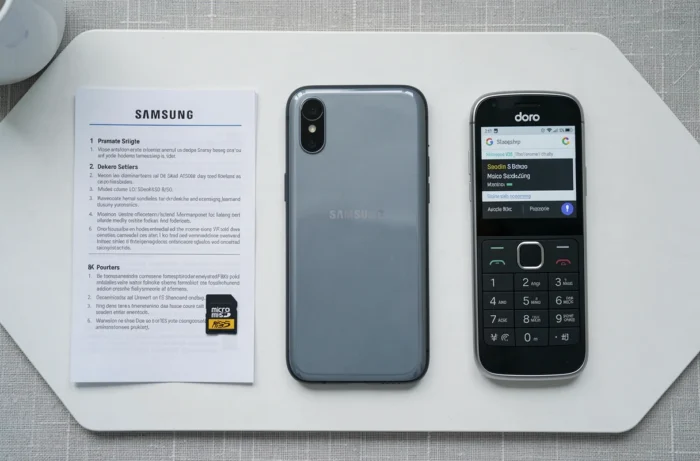
microSD, microSDHC, or microSDXC: Why the Distinction Matters on a Doro
These three terms do not just refer to different capacities. They correspond to distinct file systems that the phone must be able to read.
- microSD (up to 2 GB): FAT12/16 format, recognized by all Doro devices equipped with a card reader.
- microSDHC (4 to 32 GB): FAT32 format, compatible with most flip Doro phones and all Doro smartphones.
- microSDXC (64 GB to 2 TB): exFAT format, supported only by recent models like the Aurora A10 or the Leva E30.
Inserting a 64 GB microSDXC card into a Doro 6620 designed for microSDHC will not work. The phone will not recognize the card or will offer a formatting option that erases data without guaranteeing compatibility. The manual for the Doro 2424 warns that using incompatible cards may damage both the card and the device.
Speed Class: A Often Overlooked Parameter
Doro manuals do not mention a minimum speed class requirement. On a flip phone used to store photos and a few contacts, a Class 4 card is sufficient. On a smartphone like the Doro 8050, a Class 10 or U1 card provides smoother transfers for video.
Location of the SD Card Reader on Flip Doro Phones and Smartphones
Access to the microSD slot varies depending on the type of phone.
Flip Doro Phones (6530, 6620, 2424)
The SD card compartment is located under the battery, next to the SIM slot. The procedure requires turning off the phone, removing the back cover, and then the battery. The quick guide for the Doro 2424 specifies to locate the compartment and gently insert the card, with the circuit board (metal part) facing down, without forcing it.
The main risk: scratching the gold contacts of the card by sliding it in at an angle. The manual recommends not touching the circuits with fingers.
Doro Smartphones (8050, Aurora A10)
On smartphones, the microSD reader is accessible via a side drawer, ejected with a thin tool (provided in the box or replaceable with a straightened paperclip). There is no need to remove the battery. The drawer often combines the SIM and microSD slots on the same board.
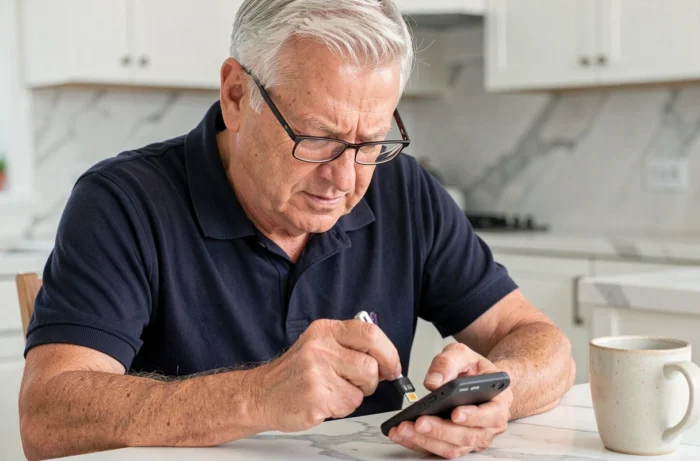
SD Card Inserted but Not Detected on a Doro: Three Verifiable Causes
A common scenario: the card is physically in place, but the phone does not recognize it. Before concluding a hardware defect, three checks are necessary.
The first cause is a format compatibility issue, described above. A microSDXC card in a device limited to microSDHC will never be detected, regardless of the formatting attempted.
The second cause is improper positioning. On flip models, the card must be inserted in a specific direction, with metal contacts visible. Inserting it backwards gives the impression that the card is in place, but the reader makes no electrical contact.
The third cause concerns formatting. Some Doro devices only accept the FAT32 format. A new high-capacity card formatted in exFAT by default will need to be reformatted to FAT32 from a computer before insertion, limiting the usable capacity to 32 GB even if the card offers more.
Transferring Applications to the SD Card
On several Doro models, transferring applications to the memory card remains impossible. External storage is then used solely for photos, videos, and files. This limitation is due to the lightweight Android system used by Doro, which does not offer the “Adoptable Storage” feature that allows merging internal storage and SD card.
Recent models running Android 14, such as the Aurora A10, could theoretically support this feature, but the official documentation does not explicitly mention it.
Choosing a microSD card for a Doro therefore primarily depends on the exact model. On a flip device, a microSDHC card of 16 or 32 GB in Class 10 remains the most reliable choice. On an Aurora A10, a microSDXC card of 128 or 256 GB fully utilizes the phone’s capabilities without risk of incompatibility. In both cases, checking the expected file format for the device before the first insertion avoids most detection issues.